Put the widget at the heart of your accessibility page.
The WelcoMe widget does the detail. Your page just needs a short welcome, a real contact and a few photos around it. See how, with five example venue pages to borrow from.
What a good page looks like
Keep it short and let the widget lead. Each example page shows these in place, with tips you can open as you look around.
- Step 1
Make the page easy to find
Put "Accessibility" in your main navigation and footer, with a plain address such as /accessibility. Many people check this page before anything else.
- Step 2
Say what the page is
"Accessibility at [your venue]" tells people they're in the right place. Avoid vague headings like "Our inclusivity commitment".
- Step 3
Keep the welcome short and warm
One or two sentences in your own voice. Say who the page is for, including people with conditions that aren't visible. The widget does the detail, so there's no need to say more here.
- Step 4
Give a real contact
A named person or team, a phone number, an email and a text-based option, plus how quickly you reply.
- Step 5
One line to introduce the widget
Tell people what they'll find below and that they can let you know what they need before they arrive. Only promise what you actually do.
- Step 6
The WelcoMe widget is the centrepiece
Your features, services, opening hours and visit guides, kept up to date from your WelcoMe dashboard. Put it high on the page, full width, and set its colour and font to match your site.
- Step 7
A few real photos
A small set of photos of your entrance and key spaces, with alt text describing what's in each one and a short caption on what matters.
- Step 8
Other formats and a review date
List any other formats you offer and when you last checked the page, so people know they can trust it.
Five example venue pages
Each one is a fictional venue with its own look, from a traditional hotel to a council service centre. The live widget sits at the centre of every page, styled to match.
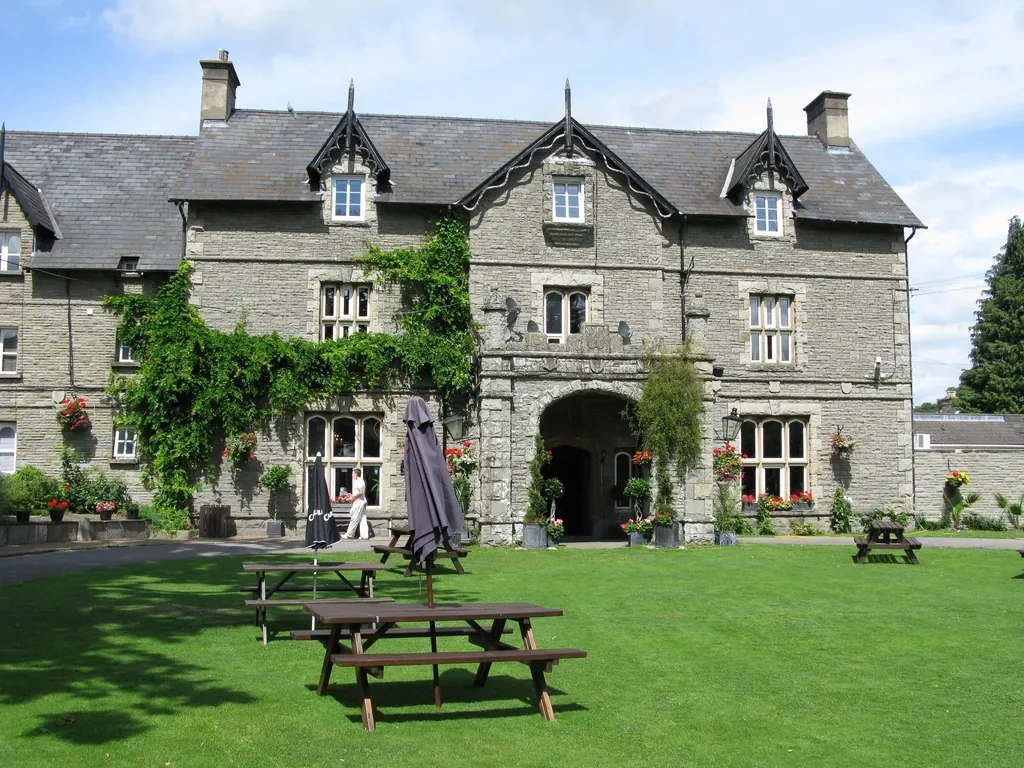 The Grand HotelHotel
Classic serif, navy on warm cream
A calm, traditional hotel site with a short welcome, a named guest contact and the widget front and centre.
View the hotel example The Royal TheatreTheatre
Elegant serif, burgundy on soft blush
A theatre with a strong brand. A friendly welcome about access performances, then straight into the widget.
View the theatre example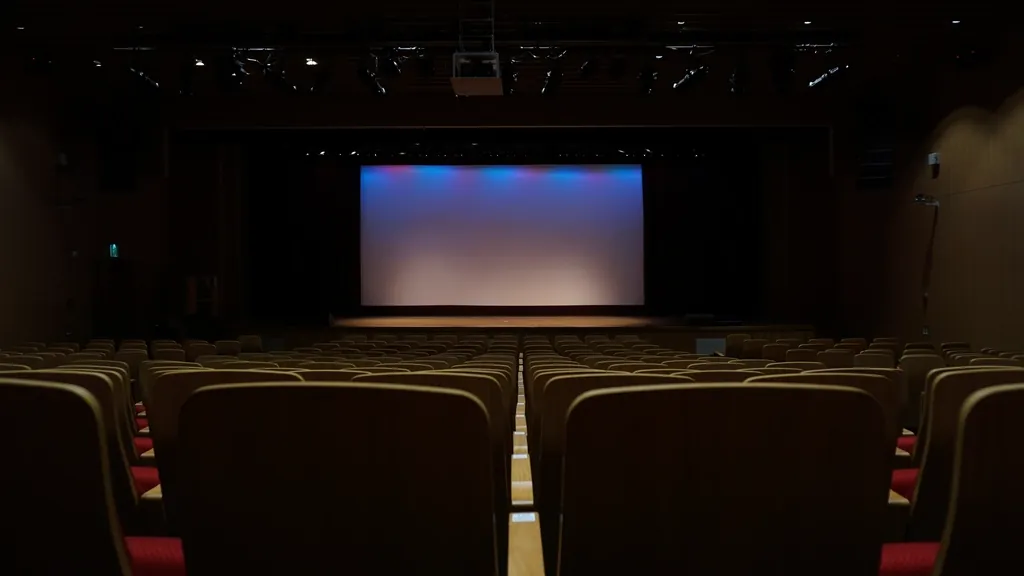 WelcoMe CinemaCinema
Rounded modern sans-serif, bright violet
A friendly, modern site with rounded corners and a bright accent colour carried into the widget.
View the cinema example WelcoMe StadiumStadium
Bold uppercase headings, pitch green
A busy events venue with punchy headings, a matchday contact point and the widget doing the heavy lifting.
View the stadium example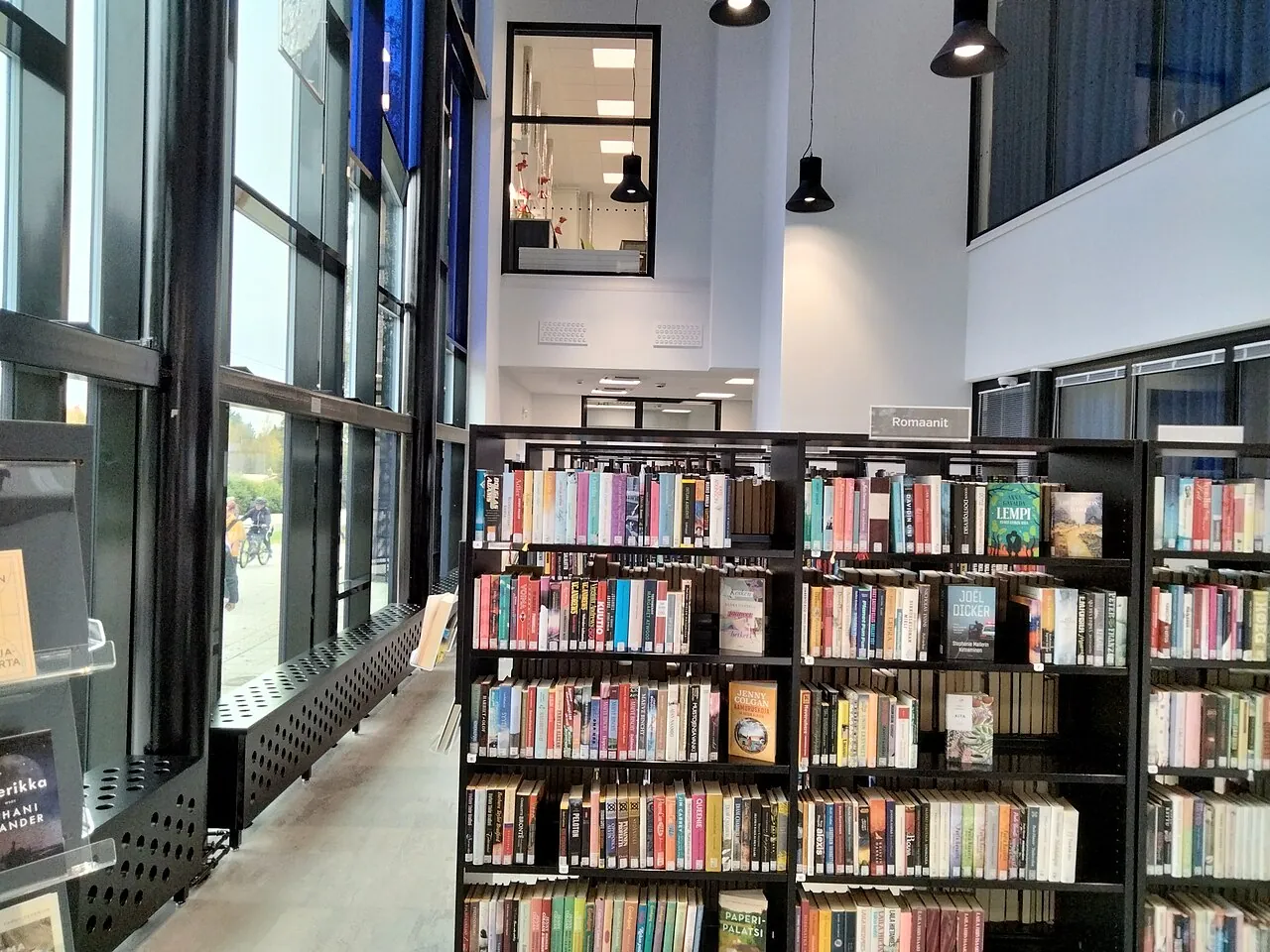 Northfield CouncilCouncil
Plain public-sector style, clear blue
A council service centre in a plain, content-first style, with interpreters and appointments up front.
View the council example
Match the widget to your website
The widget is a single script tag. A few optional attributes set its colour, theme and font, so it looks like part of your site rather than something bolted on.
By default it renders straight into your page, so accessibility toolbars such as Recite Me can read it along with the rest of your content. Your exact embed code, with your venue already filled in, is in your WelcoMe dashboard.
<script src="https://key.wel-co.me/embed.js"
  data-venue="your-venue-slug"
  data-color="#1f2a44"
  data-font="classic"
  data-hide-hero="true">
</script>| Attribute | What it does |
|---|---|
data-color#1f2a44 | Your brand colour for buttons, tabs and links. Pick one with strong contrast against white text. |
data-themelight or dark | Matches a light or dark website. |
data-fontsystem, modern, classic or clean | Sets the typeface style so the widget sits comfortably beside your own text. |
data-hide-herotrue | Hides the widget's own header image when your page already has one. |
data-ctaPlan your stay | Changes the wording of the main button to match your language. |
data-orgyour-organisation | Embeds your whole organisation hub instead of one venue, so people can choose a location first. |
Where to link your page from
- Your main navigation, labelled "Accessibility"
- The footer of every page
- Booking confirmation and ticket emails
- Your "Plan your visit" or "Getting here" page
- Your Google Business Profile and social media bios
Things to avoid
- Putting your accessibility information only in a PDF
- Headings like "Disabled facilities" that describe people rather than what you offer
- Repeating every detail that's already in the widget, which makes both harder to keep up to date
- Placing the widget below long marketing copy, where people have to hunt for it
- Promising anything your team can't reliably deliver on the day
- Leaving the page without a review date for years
Ready to build your page?
Already with WelcoMe? Log in to copy your embed code. New to WelcoMe? We'll show you the widget working with your own venue.